Cross post is the TOKERO composer that publishes one post to several social networks in a single pass. This guide shows how to use it step by step, how to adjust the post for each network and what to do when something does not fit. For an overview of the feature, see Cross-posting.
What cross-posting is
Cross-posting means publishing the same content on more than one social network. By hand, that is one upload and one copy-paste per network, with a different set of format rules each time. In Cross post you write the text and attach the photo or video once, select the networks, and the composer prepares a version for each of them.
Which networks you can post to
- TOKERO: your own feed, plus the community apps you run.
- Facebook: a Facebook Page you manage, as a post, a Reel or a Story.
- Instagram: a feed post, a Reel or a Story.
- X: a single post, or a thread when the text is too long for one.
YouTube and TikTok are marked as coming soon. Support for both is built, but neither network can make your post public yet.
How to post to multiple social networks at once, step by step
1. Connect your accounts
Open Cross Post Connections (the Manage Connections button in the composer leads there too) and connect each network you want to use. You do this only once: every post after that goes out on the accounts already linked, without logging in again. When you connect Facebook, tick the Page you want to post to.
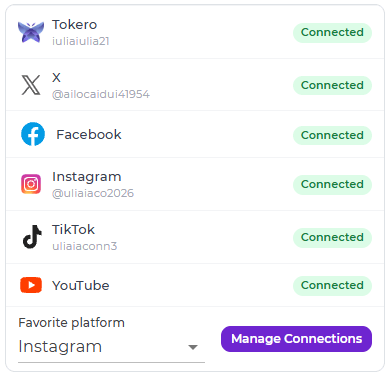
2. Select the networks
Open the Cross post composer, which is also in the side menu. Under Share, select the icon of each network that should get the post. Only connected networks appear there, next to your TOKERO feed and your community apps.
3. Write the text and add your media once
Type the post in the text box, then use Attach media for all platforms to add a photo or a video. The file is uploaded once and used for every network you selected.
4. Review the version for each network
Every network you selected gets its own block under the text, and the preview shows the post the way each network will display it. Adjust what you need there, as described in the next section.
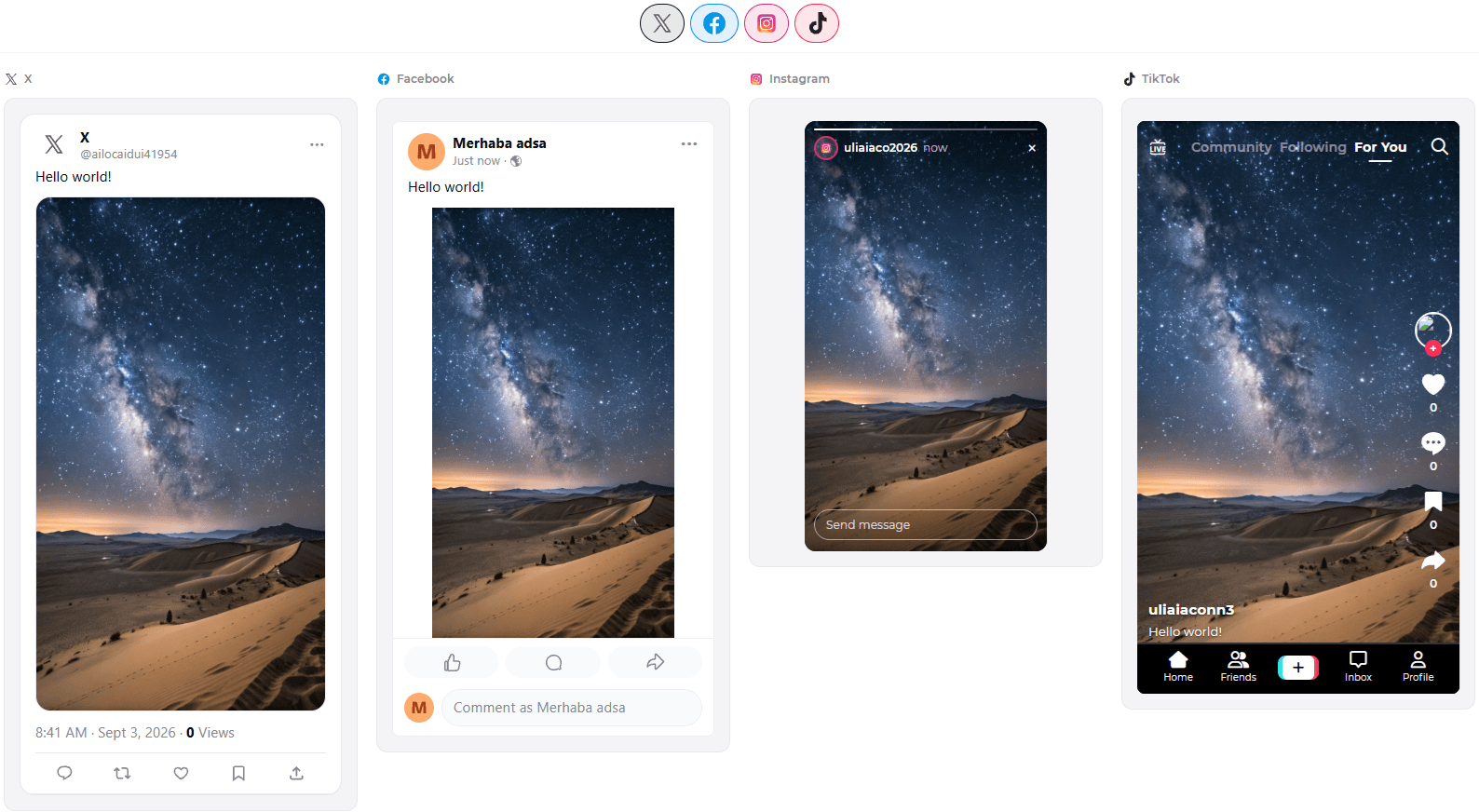
5. Publish, save or schedule
Press Post to publish to every selected network at once. The arrow next to the button switches it to Save as Draft or, when your TOKERO feed is one of the networks, to Schedule.
How to adjust the post for each network
A change made in the block of one network applies to that network only. The other networks keep the post as you wrote it.
Format and destination
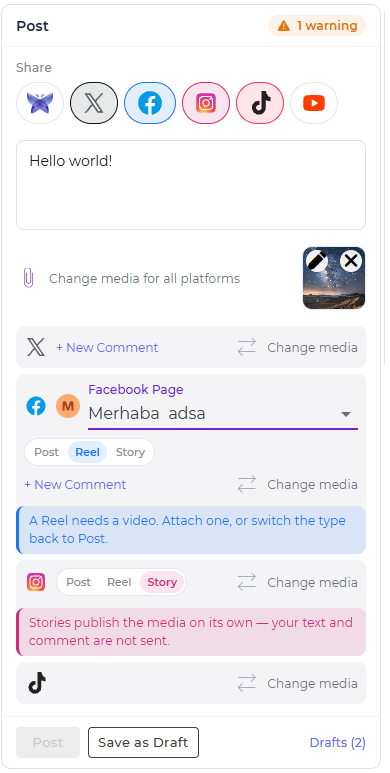
On Facebook, choose the Page and whether the post goes out as a Post, a Reel or a Story. On Instagram, choose Post, Reel or Story. A Story publishes the photo or video on its own: your text and comment are not sent.
Text and comments
On X, a text too long for one post is split into a thread automatically, and the block tells you how many posts the thread will have. You can also add a first reply. On Instagram you can add a first comment. If you separate parts of your text with two empty lines, Instagram gets the first part as the caption and each part after it as a comment.
Photos and videos
To use a different file on one network, press Change media in the block of that network; the other networks keep the shared file. For Instagram and for a Facebook Story, you choose the crop in the preview itself: drag and zoom the photo inside the frame.
Timing
The TOKERO, Facebook, Instagram and X blocks each have a Schedule post switch, so one network can get the post now and another one later.
What the composer checks before you publish
While you write, the composer checks the post against the rules of each network: aspect ratio, video length, file size and text length. When something does not fit, a warning count such as "2 warnings" appears at the top of the post card, and the Post button stays disabled until every warning is fixed. Select a warning to jump to the block it belongs to; each one shows the network and what is wrong. Some warnings offer a fix on the spot, such as cropping a video for Facebook to the shape it needs.
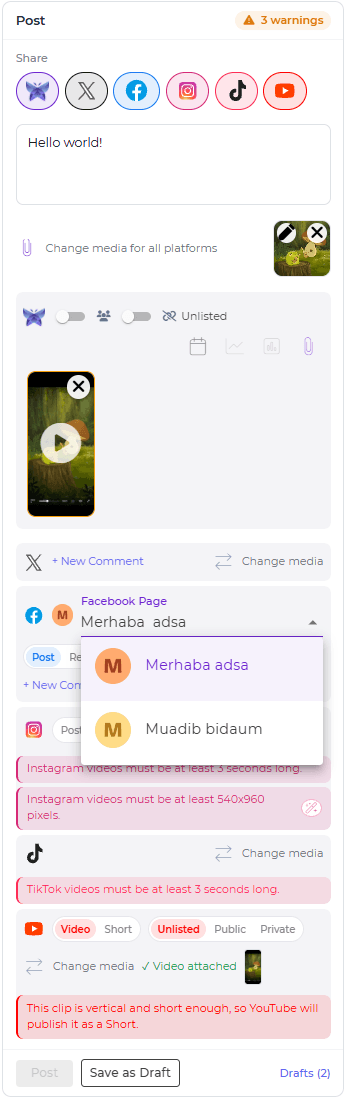
Common warnings:
- Instagram needs a photo or a video, and an Instagram Post needs a photo: choose Reel to publish a video.
- A Reel needs a video, and a Facebook Reel must be a vertical 9:16 clip.
- A Story needs a photo or a video.
- Your email address is not confirmed: nothing goes out to other networks until you confirm it.
Drafts and the posting calendar
Drafts
Choose Save as Draft to keep a post for later. Once you have drafts, the composer shows a Drafts link with their number. On the Drafts page you can edit, post or delete each draft, and editing opens it back in the composer. A date saved on a draft does not publish it: if that moment passes, the date is dropped and the text and media are kept.
If a network refuses the post when you publish, you get a message naming the network, and the post is saved to your Drafts, marked as failed and pinned to the top of the list, so you can try again.
Scheduling and the posting calendar
To publish later, schedule the post as in step 5, or use the Schedule post switch in the block of a network. The Posting calendar, in the side menu, shows your scheduled and published posts day by day, in Month, Week or Agenda view, and you can filter it by network. Open an entry to edit, reschedule or delete it, or drag it to another day. The calendar also lists your drafts: drag one onto a day, or select it and pick a date, to schedule it.
How many drafts and scheduled posts you can keep depends on your plan.
Who can use Cross post
Posting to other networks is included from the Gen. C Contributor plan up. On Explorer and Gen. C Member, you post on TOKERO only. You can see what each plan costs on the plan comparison page.
You also need a confirmed email address. Until you confirm it, nothing is sent from TOKERO to other networks, whatever your plan.
Frequently asked questions
Can I cross-post to my personal Facebook profile?
No. Posts go to a Facebook Page, not to a personal profile. If no Page shows up, create one, or reconnect Facebook and choose the Pages to share with TOKERO.
Why is the Post button disabled?
Either no network is selected, or at least one warning is still open. Open the warning count at the top of the post card: it lists what to fix and takes you to the right block.
Is my text published with a Story?
No. A Story on Facebook or Instagram carries only the photo or video. Your text and comment are not sent.
What happens if publishing fails on one network?
You get a message naming the network, and the post is saved to your Drafts, marked as failed, so you can open it and try again.
Do I ever need to reconnect an account?
Sometimes. A network ends a connection after a while. The composer and the connections page show when a connection is about to expire or has expired, and you reconnect it from Cross Post Connections.